
Cloud Connectors - AWS
To create and configure a cloud connector with AWS:
- Go to Connectors > Cloud > + New Cloud Connector.
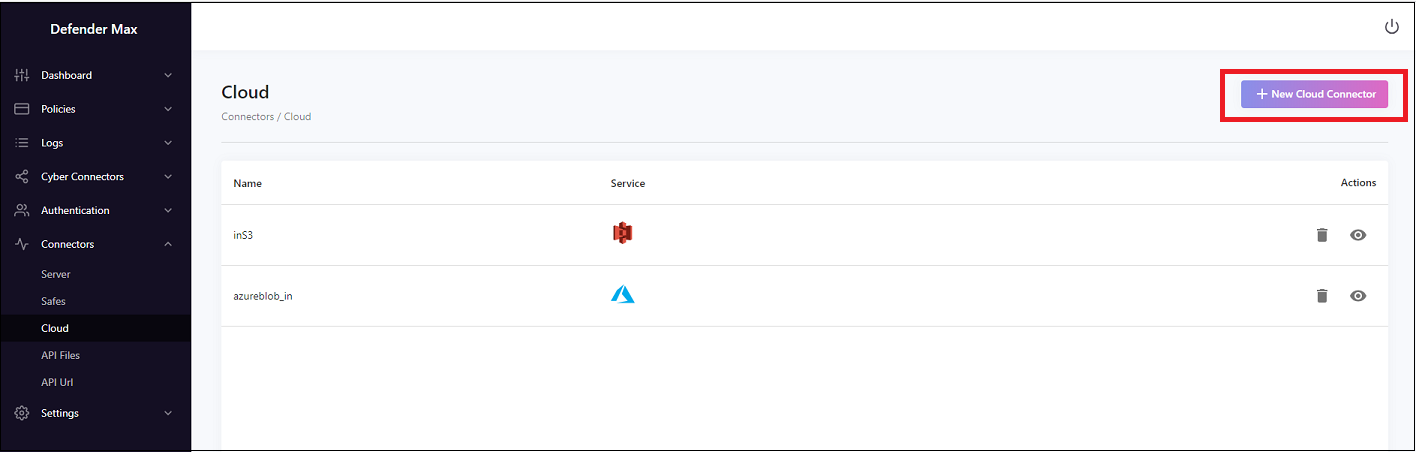
- Enter a Name for the connector; for example, inS3.
- Enter a Description.
- In the Folder field, if for example you uploaded files to S3, you can set this to bring in or out only files from a designated folder.
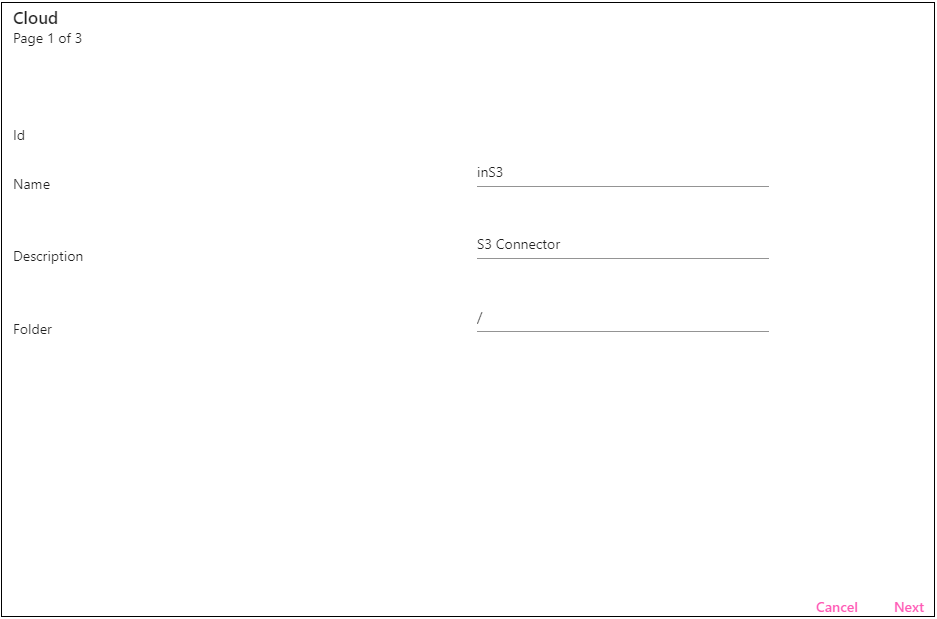
- Click Next.
- Here we’ll select aws-S3 as the cloud service.
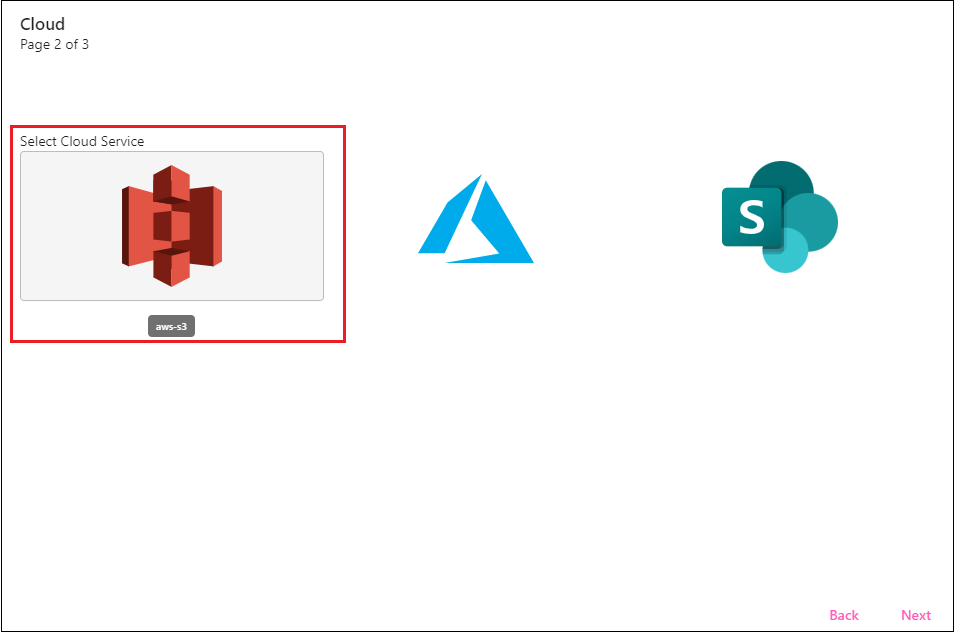
- Click Next.
- Select the Region where you are installing (for example, eu-west-1). The Region Name will populate based on that.
- Enter the Bucket name, based on the S3 bucket you created in AWS.
- You will now need to create permissions for the bucket that you created. You can do this through AWS IAM, when adding/creating a new user.
- Once you create your new user in IAM (for example, dmaxuser), you can click on that user that you created and set the permissions for it.
- Go to the Permissions tab in IAM.
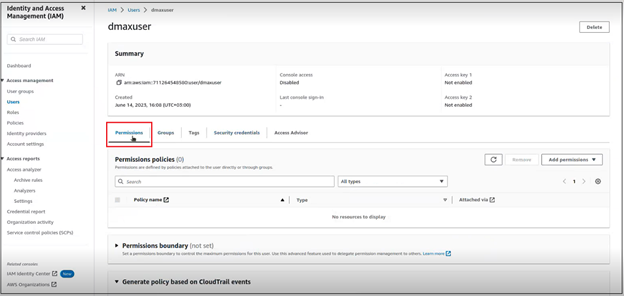
- Click Add permissions on the right, and click Attach policies directly, under Permissions options.
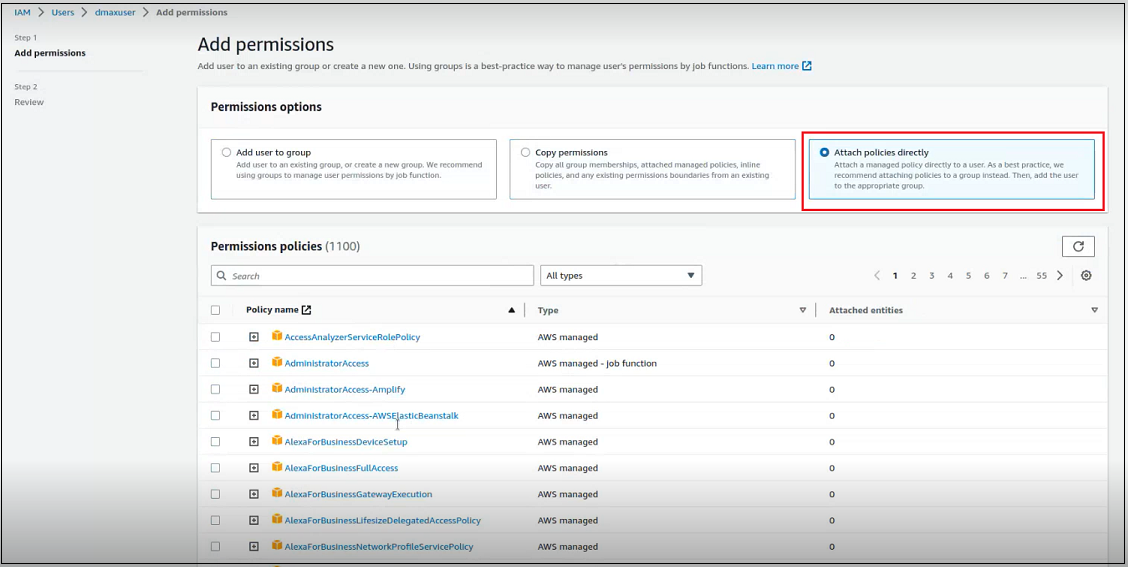
- Here you can select the permissions/folder that you want to use (for example, AmazonS3FullAccess - with Read/Write permissions).
- Click Add permissions.
- Go to the Security credentials tab, and then click Create access key.
- Click the Third-party service option, and click Next.
- Set a Description tag (for example, dmax), and click Create access key.
- You can then select your Access Key ID and Secret Access Key from there, and copy them back into the Defender Max platform.
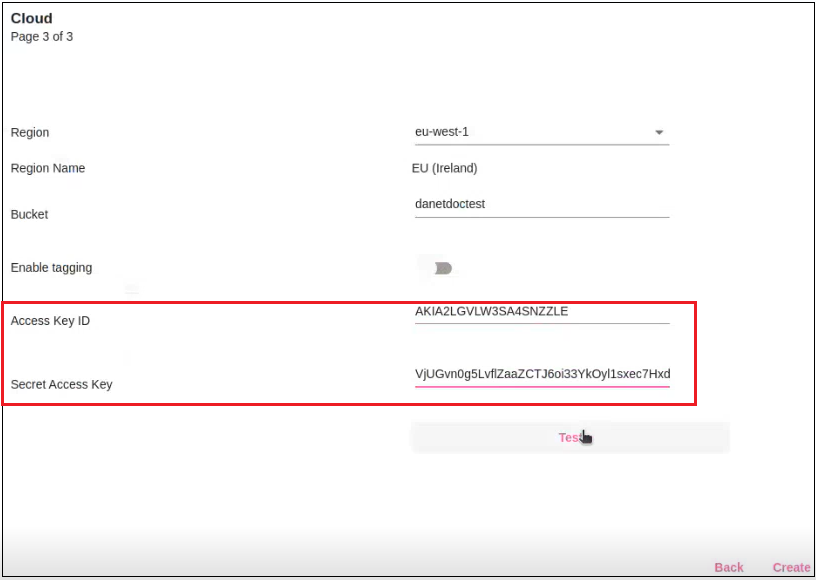
- Click Test to make sure the test passed. If the test passes, you will see green checks on the test page. If there are any errors, you will see red x’s, indicating that the test did not pass.
- Once the test passes, click Create at the bottom of the screen to proceed.
- In AWS S3, you can now go into your bucket, and select the files/folders that you want to upload to S3.
- Go back to the flow policy in Defender Max (Policies > Flow Policies), and select the relevant source and destination.
- Click Apply. You will now connect to S3, where you can take the file, check for viruses, and move the file to (for example) your organization’s SFTP server. You can check the Traffic Log to see if the file was successfully transferred.
Updated 9 months ago